Willkommen beim Climbing.Place Guide!
Egal, ob Sie ein Kletterer sind, der sein neuestes Projekt protokollieren möchte, oder ein Kletterhallenbesitzer, der seine Kletterwände in das digitale Zeitalter bringt, dieser Leitfaden zeigt Ihnen genau, wie Sie unsere Plattform optimal nutzen können.
Teil 1: Für Kletterer
Navigieren auf der interaktiven Wandkarte
Wenn Sie das Profil einer Kletterhalle besuchen, müssen Sie nicht durch endlose Textlisten scrollen, um Ihre Route zu finden. Wenn die Kletterhalle ihre Wände kartiert hat, wird eine interaktive Karte der Kletterhalle angezeigt.
- Tippen Sie auf einen beliebigen farbigen Sektor auf der Blaupause oder bewegen Sie den Mauszeiger darüber.
- Auf der Karte wird Ihnen der Name der Wand angezeigt (z. B. „Überhang“, „Plattenwand“).
- Klicken Sie auf einen Sektor und die Seite scrollt Sie sanft nach unten zu den Routen für diese bestimmte Wand!
Durchsuchen von Routen
In jedem Sektor sehen Sie eine Liste der aktiven Routen zusammen mit ihrer Farbe, ihrem Wegweiser, ihrem Schwierigkeitsgrad und ihrer durchschnittlichen Community-Bewertung.
- To save your phone's battery and data, we load the first batch of routes only. Just tap "Load more routes" at the bottom of the table to see the rest!
- Möchten Sie sehen, was andere Kletterer denken? Tippen Sie irgendwo auf eine Routenzeile, um das Fenster „Climber Reviews“ sofort zu erweitern und die neueste Betaversion zu lesen.
Protokollieren Sie Ihren Aufstieg
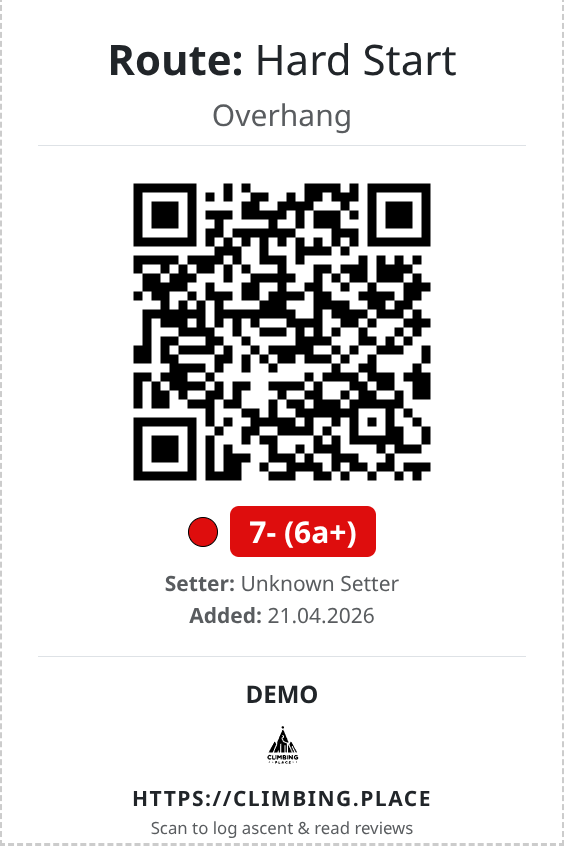
Scannen Sie den QR-Code am Anfang der Route, um sofort die Seite mit den Routendetails zu öffnen. Von hier aus können Sie Ihren Versand protokollieren!
- Anmelden: Sie müssen angemeldet sein, um Ihre Aufstiege zu verfolgen.
- Aufstiegsstil: Haben Sie es Onsight gemacht? Flashen? Oder endlich den Redpoint holen? Wählen Sie Ihren Stil aus, damit Sie Ihren Fortschritt verfolgen können!
- Schlagen Sie eine Note vor: Wenn Sie der Meinung sind, dass der Setzer die Route mit Sand gefüllt hat (oder sie sich etwas weich anfühlte), schlagen Sie eine Note vor.
- Beta verlassen: Schreiben Sie einen Kommentar, um dem nächsten Kletterer zu helfen, und hinterlassen Sie eine Bewertung von 1 bis 5 Sternen.
Teil 2: Für Kletterhallenbesitzer und -manager
Beanspruchen Sie Ihre Kletterhalle
Ist Ihre Kletterhalle aufgeführt, Sie haben aber keinen Zugriff zum Bearbeiten?
- Navigieren Sie zum öffentlichen Profil Ihrer Kletterhalle.
- Scrollen Sie nach unten und klicken Sie auf die große gelbe Schaltfläche „Diese Kletterhalle beanspruchen“.
- Füllen Sie Ihre Kontakt-E-Mail-Adresse, WhatsApp/Telegram und Ihre Position in der Kletterhalle aus. Senden Sie eine kurze Bestätigungsnachricht, damit unser Team bestätigen kann, dass Sie dort arbeiten.
- Nach der Genehmigung entsperren Sie das Management Dashboard!
Das Management-Dashboard
Nach der Verifizierung wird Ihnen die Schaltfläche „Kletterhalle verwalten“ angezeigt. Wenn Sie darauf klicken, wird Ihr Besitzer-Dashboard geöffnet – Ihre zentrale Kommandozentrale. Von hier aus haben Sie Zugriff auf alles, was Sie für den Betrieb Ihrer Einrichtung benötigen.
Öffnungszeiten festlegen
Halten Sie Ihre Kletterer auf dem Laufenden, wann sie trainieren können.
- Klicken Sie auf die Kachel „Öffnungszeiten“.
- Sie können die Öffnungs- und Schließzeiten für jeden Tag der Woche auf einem einzigen Bildschirm festlegen.
- Müssen Sie wegen eines Feiertags oder eines Wettbewerbs schließen? Aktivieren Sie einfach das Kontrollkästchen „Geschlossen“ für den jeweiligen Tag.
Verwalten von Preisen und Tickets
Transparente Preise helfen Kletterern bei der Planung ihrer Besuche.
- Klicken Sie auf die Kachel „Preise & Tickets“.
- Fügen Sie Eintrittsgelder, Leihgebühren (Geschirr, Schuhe) und Mitgliedschaften hinzu.
- Sie können angeben, ob ein Preis für eine bestimmte Altersgruppe gilt (z. B. „Studenten“, „U18“), ob er nur am Wochenende gilt, oder sogar Happy-Hour-Zeiten einrichten!
Zeichnen des Wandlayouts (Sektoren)
Helfen Sie Kletterern, sich in Ihrer Kletterhalle zurechtzufinden, indem Sie interaktive Sektoren über Ihren Grundriss zeichnen.
- Gehen Sie zu Layout bearbeiten.
- Verwenden Sie das Leinwand-Werkzeug, um Formen (Polygone) über Ihre verschiedenen Wandabschnitte zu zeichnen.
- Weisen Sie jedem Sektor einen Namen und eine eindeutige Farbe zu. Dadurch wird automatisch die interaktive Karte auf Ihrem öffentlichen Profil generiert!
Routen verwalten und QR-Codes drucken
Hier geschieht die Magie.
- Klicken Sie auf Routen verwalten, um neue Anstiege zu Ihren aktiven Sektoren hinzuzufügen.
- Weisen Sie der Route Farbe, Streckenplaner und Schwierigkeitsgrad zu.
- Das System generiert automatisch einen eindeutigen QR-Hash für die Route. Sie können diese QR-Codes ausdrucken und an die Startgriffe kleben, damit Kletterer ihre Aufstiege sofort scannen und protokollieren können!
Brauchen Sie Hilfe?
Wenn Sie auf Probleme stoßen, auf einen Fehler stoßen oder eine Funktionsanfrage haben, wenden Sie sich an unser Support-Team unter contact page!

Finden Sie Ihr nächstes Projekt mit unserer umfangreichen Datenbank mit Routen und Boulderproblemen. Suchen Sie nach…